
How to Reset Your Password
If you have forgotten your password or are having trouble logging in, follow the steps below to regain access to your account.
Step 1: Open the Login Page
Go to the Login Page.
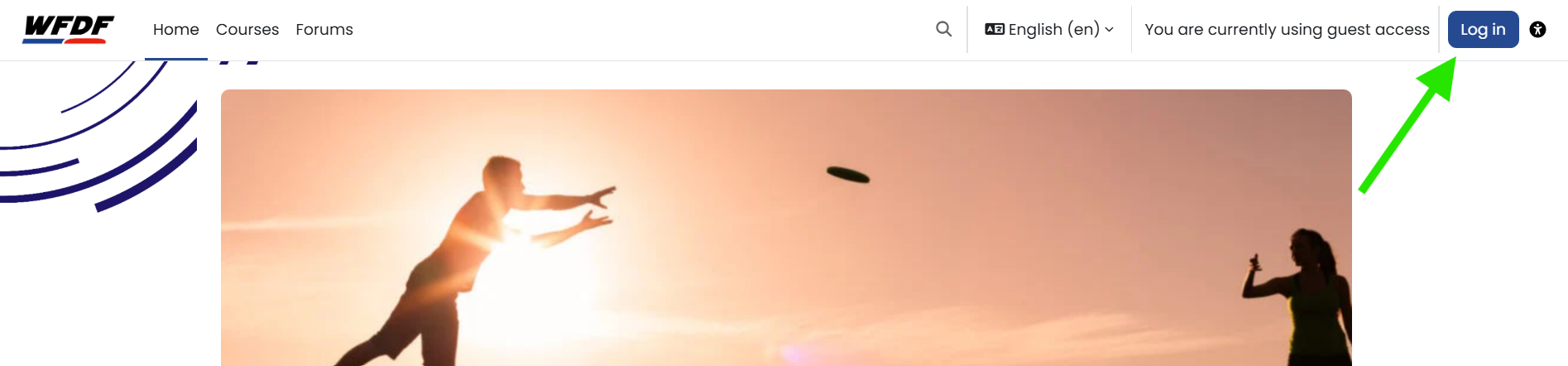
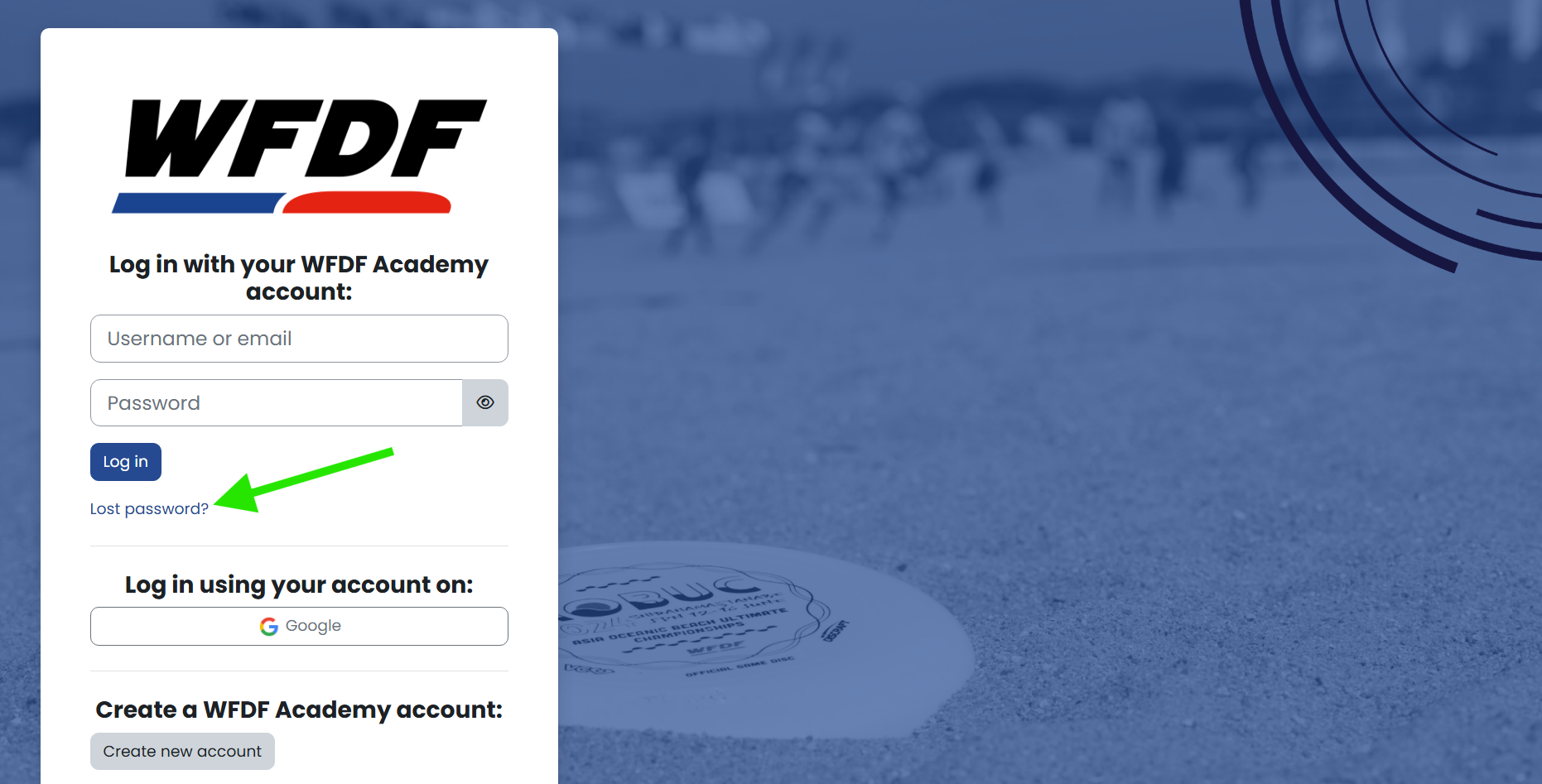
Step 2: Select Lost Password?
On the login page, click Lost Password? below the sign-in form.
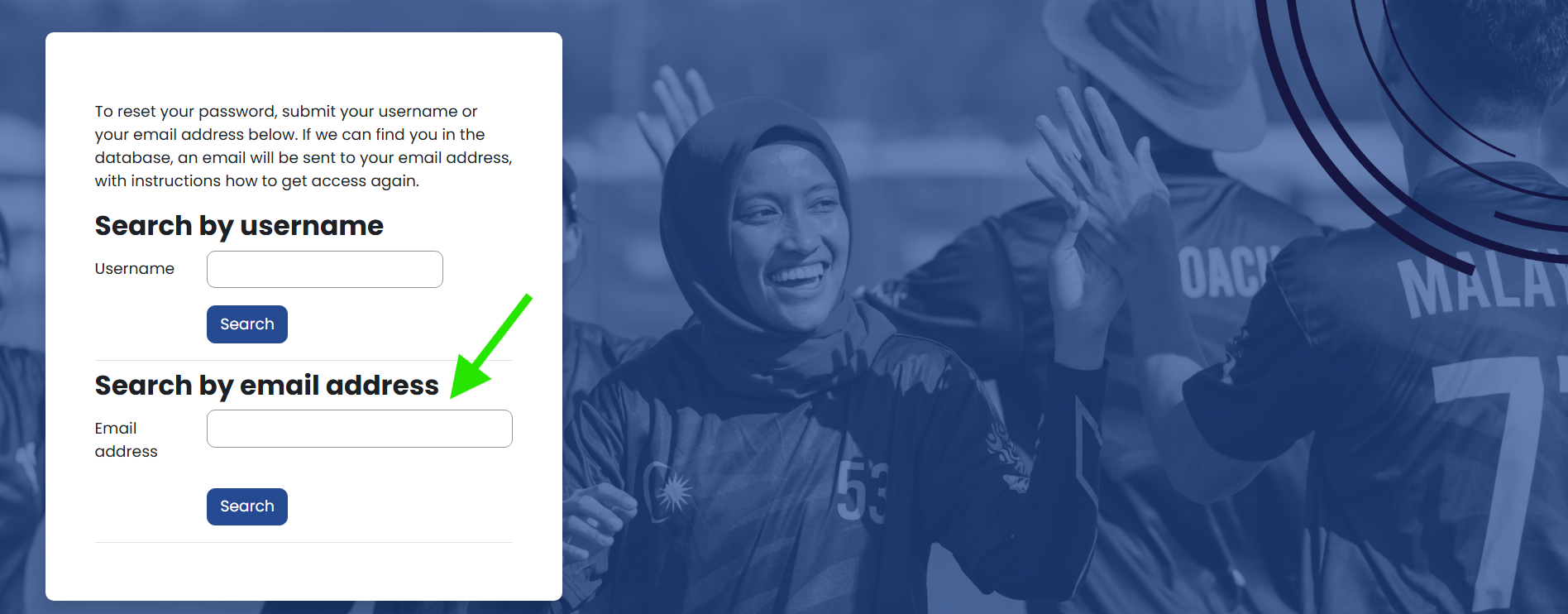
Step 3: Enter Your Email Address
Enter the email address registered with your WFDF Academy account, then click Search.
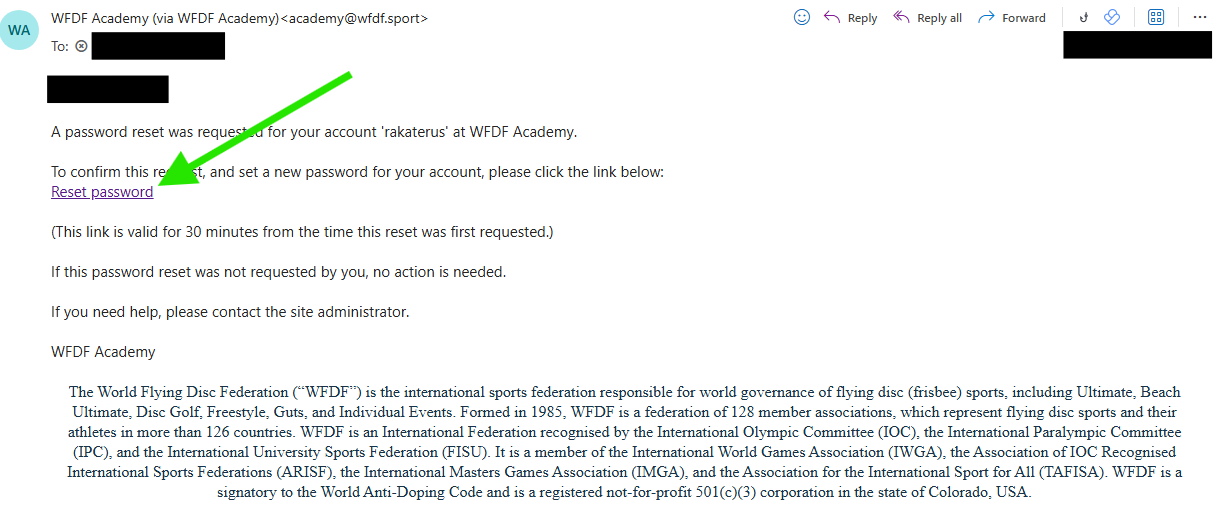
Step 4: Check Your Email
If your account is found, WFDF Academy will send a password reset email to your registered email address.
If you do not receive the email within a few minutes, please check your spam or junk folder.
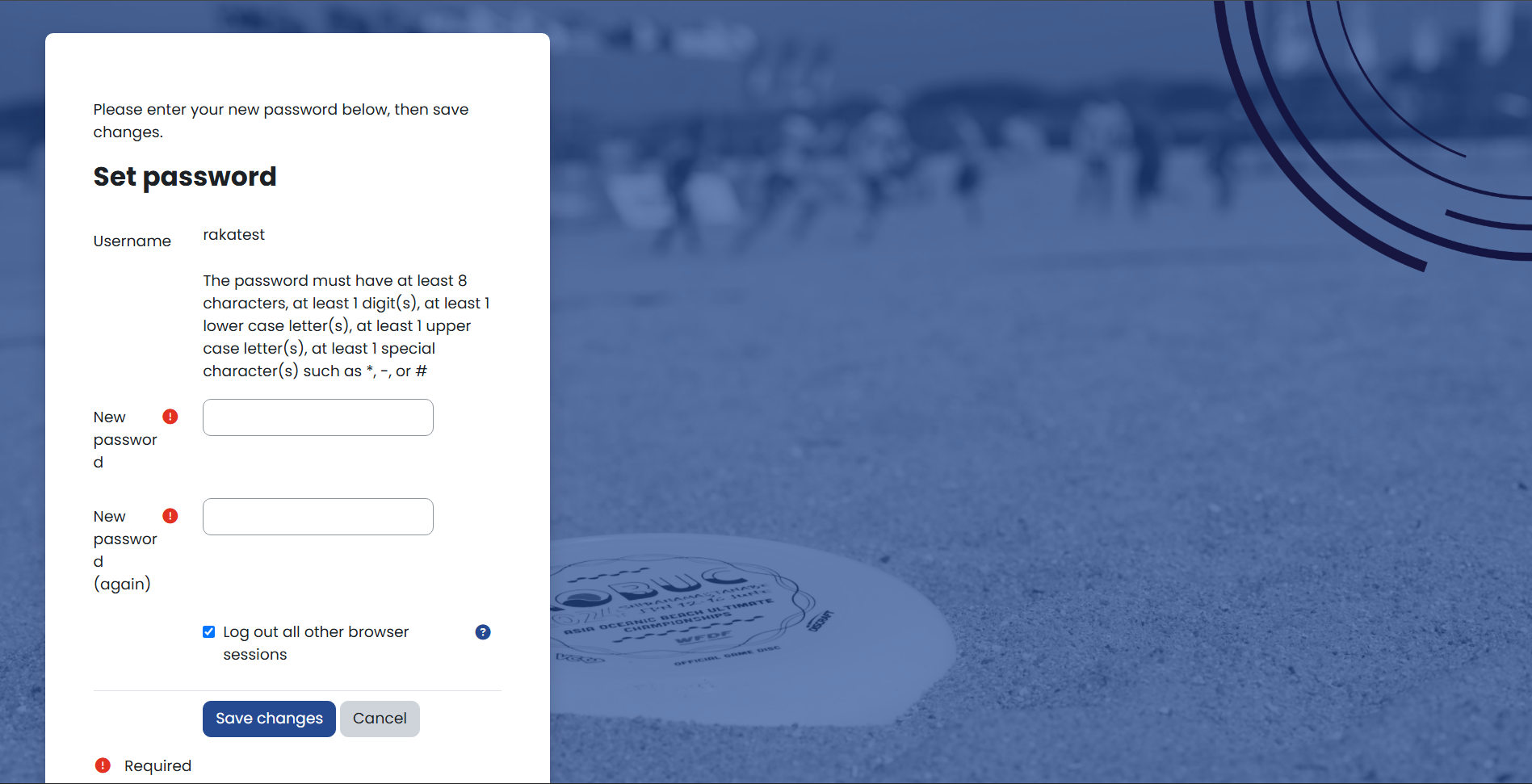
Step 5: Create a New Password
Enter and confirm your new password, then save your changes.
Your new password must have at least the following:
- 8 characters
- at least 1 digit(s)
- at least 1 lower case letter(s)
- at least 1 upper case letter(s)
- at least 1 special character(s) such as *, -, or #
Step 6: Complete Your Profile
Please ensure that:
- Your First Name starts with a capital letter.
- Your First Name and Last Name contain only letters (A–Z) and spaces.
- You complete all required fields, including:
- Gender Identity
- Country of Nationality
- Country of Residence
Once you have completed the required information, click Update Profile.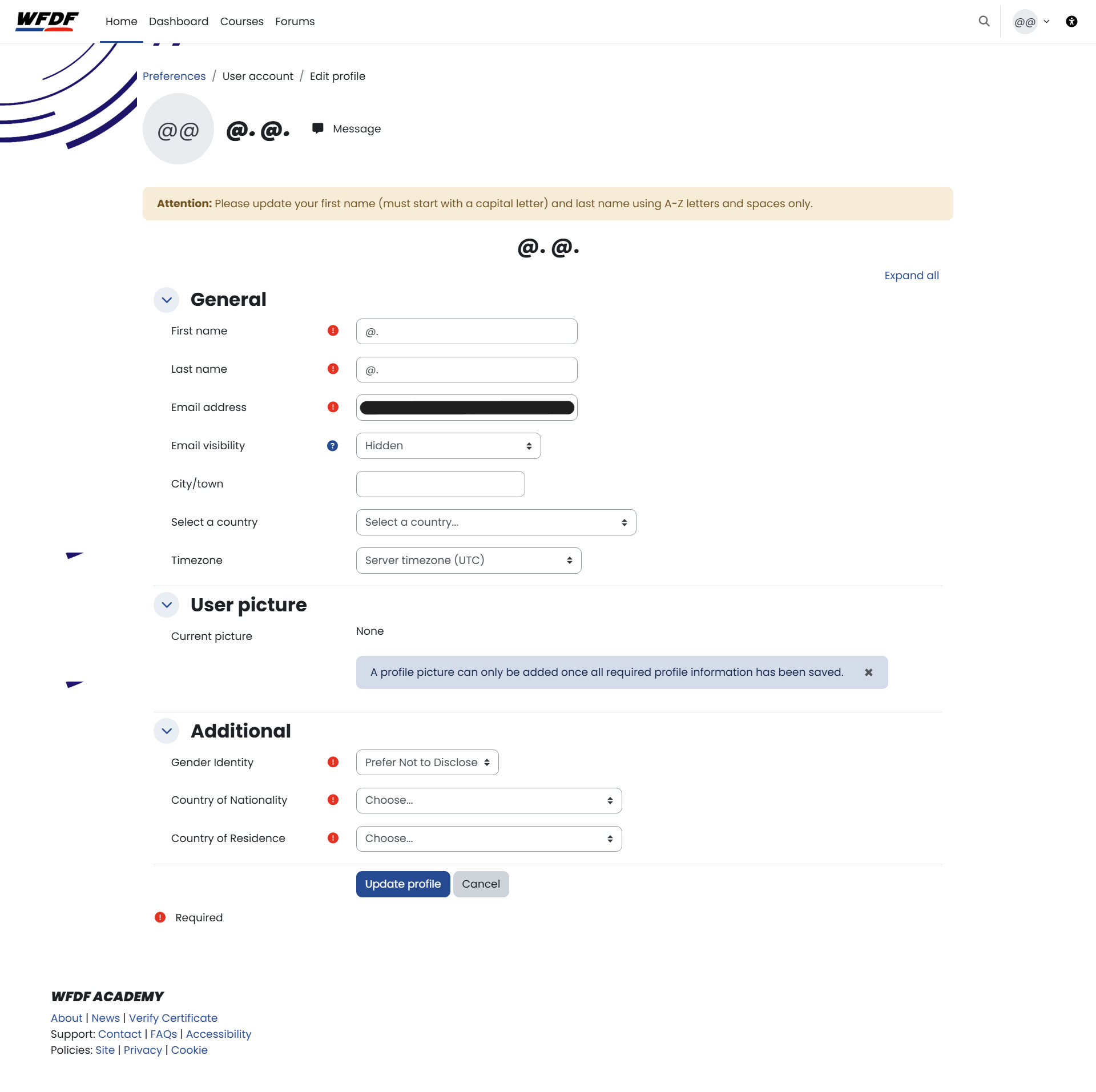
Step 7: Accept the Site Policies
Read and accept the following policies and consents:
- Site Policy
- Privacy Policy
- Cookie Policy
- Marketing Consent (Optional)
Once you have accepted these, you will be able to access your WFDF Academy account.
Still Need Help?
If you are still experiencing issues logging in after following this guidance, please contact us using the Contact page.